
How to annotate screenshots for clearer bug reports
A useful bug report tells someone where the problem is, what you expected, and how to reproduce it. A screenshot supports that explanation when the annotations point to one clear issue.
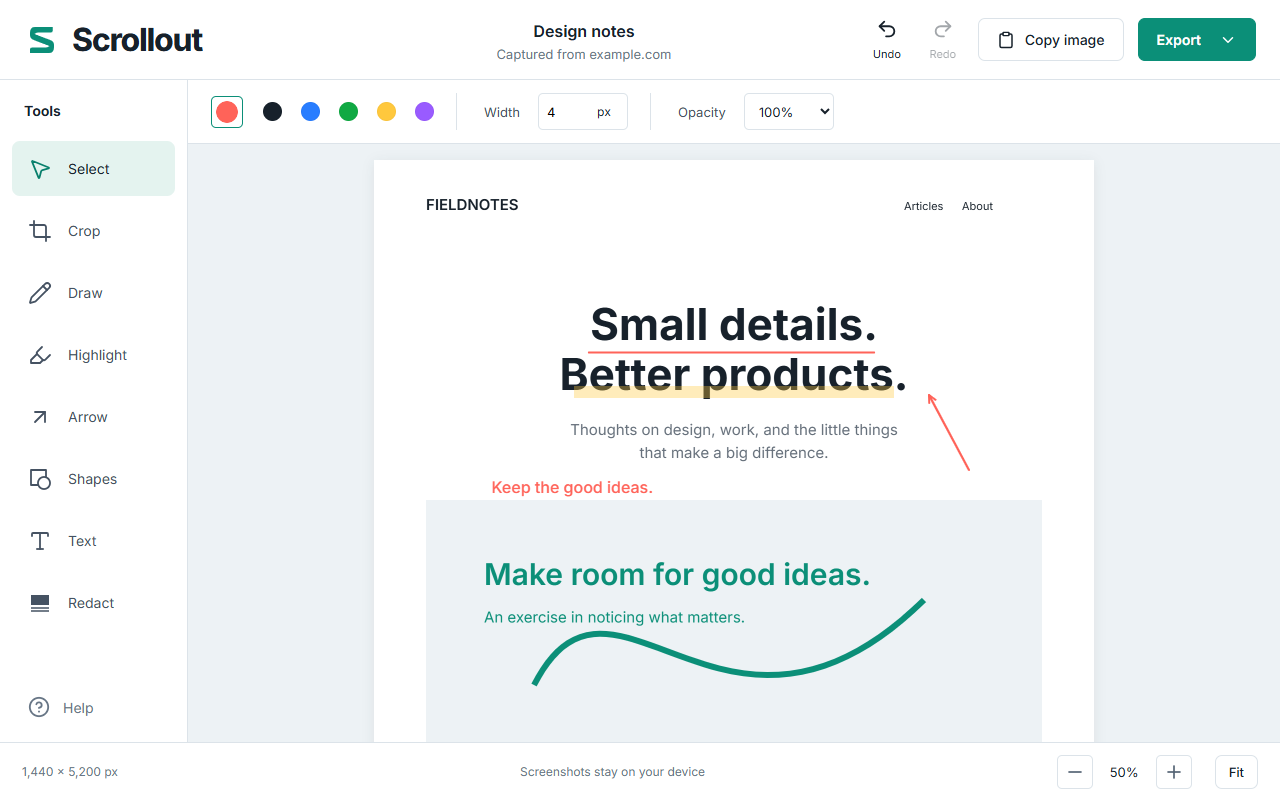
Capture the state that actually shows the problem
Reproduce the issue once before capturing. Record the browser version, window size, page or feature, and the steps that led there. If the page is still loading or shifting, wait until the problem is visible and stable.
A full-page image is useful for a misplaced section or a layout problem across several blocks. A smaller crop is often better for a single overlapping button. Keep enough surrounding content to identify the location.
Use one visual cue for each point
- Capture the page with Scrollout and let the editor open.
- Use Crop to remove irrelevant areas, then choose Apply crop.
- Add an arrow pointing to the exact misplaced edge or control.
- Add a short text label such as “Submit button overlaps totals.”
- Use a highlight only when text needs emphasis; avoid covering the evidence.
Keep labels close to what they describe. Two precise annotations are easier to follow than a page covered in arrows. If you need to report several unrelated bugs, make separate images and reports.
Put the reproduction steps next to the image
Use this simple template in your issue tracker or support message. A screenshot does not replace the steps.
Title: Checkout button overlaps order totals
Environment: Chrome version, operating system, window width
Steps:
1. Open the cart with two items.
2. Expand the delivery options.
3. Observe the bottom of the order summary.
Expected: Button appears below the totals.
Actual: Button overlaps the final line.
Attachment: checkout-overlap.png
State whether the issue happens consistently. If a problem depends on a particular account or data record, describe the conditions without publishing private identifiers.
Remove information the recipient does not need
Review names, addresses, account identifiers, URLs with tokens, and open messages. In Scrollout, use Redact for an opaque black cover, then export a flattened image. A transparent highlight is not a redaction. See the redaction guide for the export check.
Scrollout does not send the capture to FarFlash. Once you upload the exported image into an issue tracker, that service’s access and retention settings determine who can view it.
Export and inspect the attachment
PNG is a practical starting point for UI text. Open the saved file outside the editor and make sure labels are readable, private content is covered, and the image includes the relevant context. A very long capture may be split into image parts; attach the relevant parts with clear filenames.
FarFlash Group Ltd. makes Scrollout and publishes this guide. All its editing tools are free. Captures are temporary, so save your final image before closing the last editor.