Click once. Let it scroll.
Open a page and click the Scrollout toolbar icon. Keep the source tab active while Scrollout captures the page from top to bottom and side to side.
A long screenshot. A simple editor. Draw, crop, highlight, and export with every tool included.
Get Scrollout for Chrome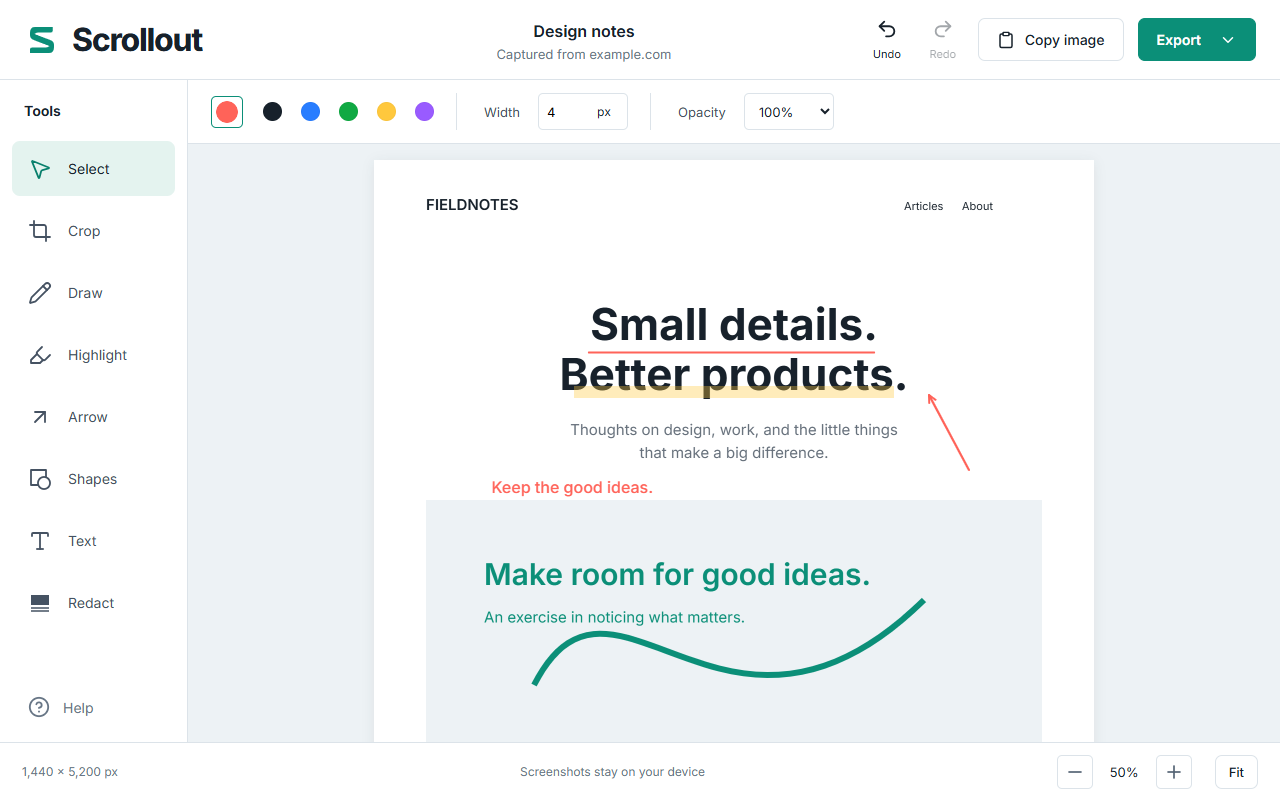
Make a quick note, point out a detail, or share just the part that matters. Your screenshot is your canvas.
Open a page and click the Scrollout toolbar icon. Keep the source tab active while Scrollout captures the page from top to bottom and side to side.
Draw, highlight, add arrows, shapes, or text. Crop, move, and resize your edits. Undo and redo give you room to get it right.
Save a PNG, JPEG, or paginated A4 PDF. Copy an image to your clipboard. Large images arrive as numbered parts in one ZIP.

Your screenshots are never uploaded to FarFlash. We cannot see or access your captures through the extension. Capture and editing happen entirely on your device, with no analytics or account.
Captures are temporary. Export anything you want to keep before closing the last editor. Your downloaded files and clipboard copies stay under your control.
Read the privacy policySimple tools, clear boundaries.
Yes. All capture, editing, redaction, and export tools are included. There is no subscription, account, or paid upgrade.
Scrollout captures ordinary document scrolling in desktop Chrome 120 and later. Chrome-owned pages, the Chrome Web Store, and other protected pages can restrict capture. Nested scrolling panels and embedded frames keep their visible contents. Infinite feeds stop at the initial page length.
They stay in temporary local extension storage. Reloading the editor preserves its saved edits. Closing or leaving the last editor for a capture deletes that capture. Restarting Chrome expires temporary sessions. Files you export and clipboard images are separate and remain under your control.
The Chrome Web Store listing is being prepared. You can try the tested extension now by loading the ZIP in Chrome.
Download Scrollout ZIPVersion 1.0.2 · Desktop Chrome 120+ · Free
On a website, click Scrollout to capture. Keep that tab active until the editor opens.
SHA-256
5ab3aae82a8eb2e29f88e44ef06044e777c288d5ab8816ec227b218dc927d580