
How to take a full-page screenshot in Chrome
A normal screenshot stops at the edge of your screen. A full-page capture includes the document below the fold. Chrome has a built-in option, and Scrollout adds a local editor when you need to explain or crop the result.
Prepare the page before you capture
Open the page at the window width you want to document. Let images load, expand any sections you want included, and dismiss pop-ups you do not want in the image. A desktop capture records the desktop layout; making the window narrower can change the content arrangement.
Review the page for names, account details, and other information you do not want to share. A screenshot can include anything visible in the page. Permission to view a page does not necessarily mean you should redistribute it.
Option 1: use Chrome’s built-in capture
- Open Chrome DevTools with Ctrl+Shift+I on Windows or Linux, or Command+Option+I on macOS.
- Open the Command Menu with Ctrl+Shift+P, or Command+Shift+P on macOS.
- Type screenshot and choose Capture full size screenshot.
- Open the downloaded image and check the top, middle, and bottom.
Google documents screenshots through the DevTools Command Menu and Device Mode. This is a good starting point for an occasional capture without installing an extension. Editing happens in a separate image tool.
Option 2: capture and edit with Scrollout
- Install Scrollout and pin it in Chrome’s extensions menu.
- Open your page, click Scrollout, and keep the source tab active while it scrolls.
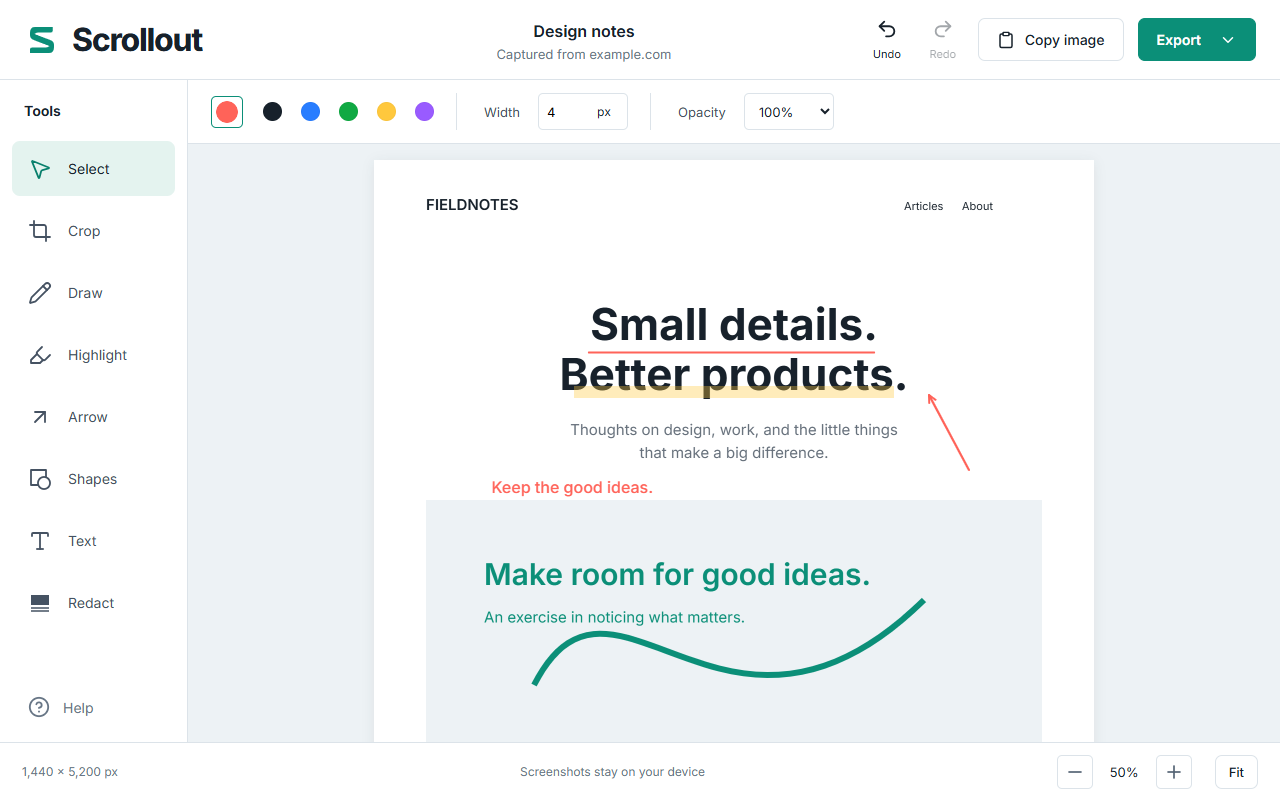
- When the editor opens, use arrows, highlights, text, or crop to clarify the image.
- Choose Export, select a format, and save the result before closing the editor.
Click the toolbar icon again or press Escape on the source page to cancel. Manual scrolling, changing tabs, navigation, or viewport changes interrupt capture so tiles from different page states are not silently combined.
Scrollout is made by FarFlash Group Ltd., the publisher of this guide. Capture and editing happen on your device; screenshots are never uploaded to us.
Why some captures look different from the page
Sticky headers, fixed overlays, animations, and lazy content can complicate any full-page capture. Scrollout temporarily returns sticky elements to normal flow and includes fixed overlays in the first tile. It restores the page after capture or interruption.
Scrollout stops at the document dimensions measured at the start. Infinite feeds do not continue forever, and independently scrolling widgets or embedded frames keep their currently visible contents. Chrome-owned pages, the Web Store, and other protected pages may block extension capture.
Check the result and choose an export
Inspect section joins, image loading, and the last part of the page before sharing. PNG is a useful default for crisp interface text; JPEG can suit photo-heavy pages; PDF breaks a long capture into A4 pages. Very large Scrollout image exports arrive as numbered parts in a ZIP.
Need to make your point obvious? Follow our bug report annotation workflow. For format tradeoffs, see PNG, JPEG, or PDF.