
How to redact a screenshot before sharing it
Before sharing a screenshot, decide which information the recipient actually needs. Crop away irrelevant areas and use an opaque redaction for sensitive details that remain inside the image.
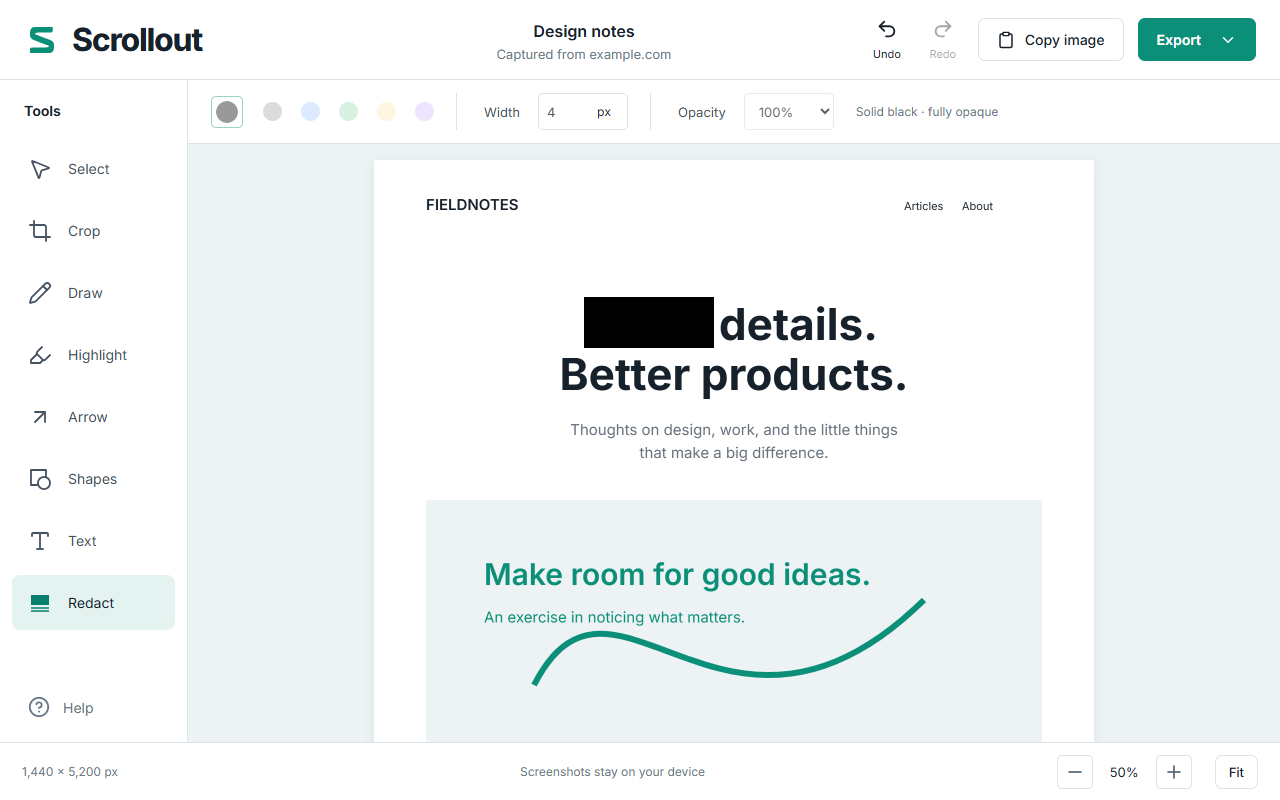
Review the entire image, including the edges
Look for email addresses, account numbers, names, addresses, messages, QR codes, and URLs containing private tokens. A long screenshot may include a second copy of a name or account detail farther down the page.
Check the file name too. Covering a customer’s name in the image does not help if you put that same name in the attachment’s title or in a public issue description.
Use solid redaction rather than a highlight
A highlight is designed to leave text visible. A translucent shape can also reveal the characters underneath. For screenshot redaction in Scrollout, choose Redact and drag an opaque black rectangle over the complete sensitive area.
Leave a margin around the content, especially around tall characters, adjacent labels, and the edge of a code. Zoom in to confirm the rectangle covers everything. Move or resize the annotation if needed before exporting.
Export the result into a new file
Scrollout flattens black redactions into the output image pixels. Its export renderer masks covered source pixels before resampling and reapplies the opaque output mask. PNG, JPEG, PDF, and clipboard output use the flattened result.
The original screenshot pixels still exist inside the temporary editor so you can undo. A redacted export and an editable session are different things. Share the exported file, and export anything you need to keep before closing the last editor. Closing it deletes the temporary capture; this is logical deletion, not a promise of forensic erasure from storage or backups.
Open the saved file and check it independently
- Open the exported image or PDF outside Scrollout.
- Zoom in around each redaction edge and look for uncovered characters.
- For a PDF, inspect every page that contains the sensitive area.
- For a ZIP export, check every relevant image part.
- Make sure you attach the redacted version rather than an earlier export.
Scrollout exports screenshots as rendered pixels. This guide concerns those image exports; it does not describe removing hidden text, revision history, or metadata from an arbitrary PDF or office document.
Check the destination before sending
FarFlash Group Ltd. makes Scrollout. Screenshots never upload to us through the extension, and capture and editing happen on your device. Downloaded files, clipboard history, operating-system sync, and any service you paste or upload into have their own storage behavior.
Use the smallest audience that needs the image. Read our privacy policy for the temporary-storage details and our bug-report guide for adding useful context without exposing more than necessary.